Exporting Data
CertHub's export functionality enables you to extract and share your data in various formats. Whether you need to back up your configuration, share templates with other users, or analyze your form records, the export system provides the tools you need.
1. Knowledge Unit Schemas
Knowledge Unit Schemas can be exported as JSON files, preserving your complete schema definitions. This is particularly useful when you need to:
- Share standardized data structures across different CertHub instances
- Create backups of your schema configurations
- Establish template schemas for new implementations
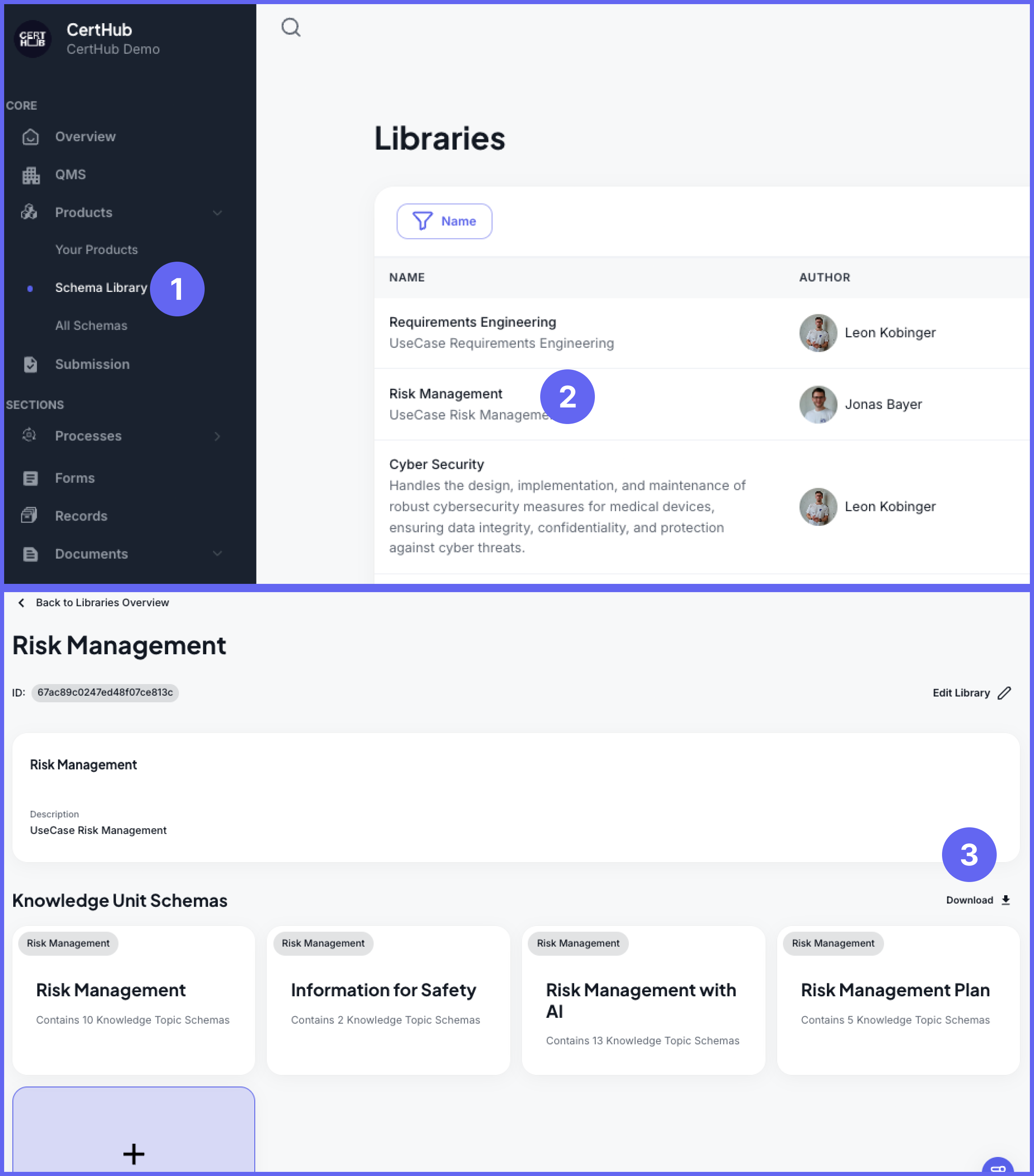 To export a Knowledge Unit Schemas, follow these steps:
- Navigate to the Schema Library section in the left sidebar of CertHub.
- Select the desired library where you want to import the schema (for example, "Risk Management").
- Click the "Download" button
The exported files will be downloaded as a ZIP archive. Simply extract the ZIP file to access your exported data files.
The exported Knowledge Unit Schemas will be downloaded as a ZIP archive containing:
- Complete configuration and structure
- All Knowledge Topics and their structures (records are not included in the export 📢)
2. Knowledge Units
When you export Knowledge Units, CertHub generates comprehensive JSON files containing all unit configurations and structure. This export type is essential for:
- Migrating knowledge bases between environments
- Creating backups of critical knowledge structures
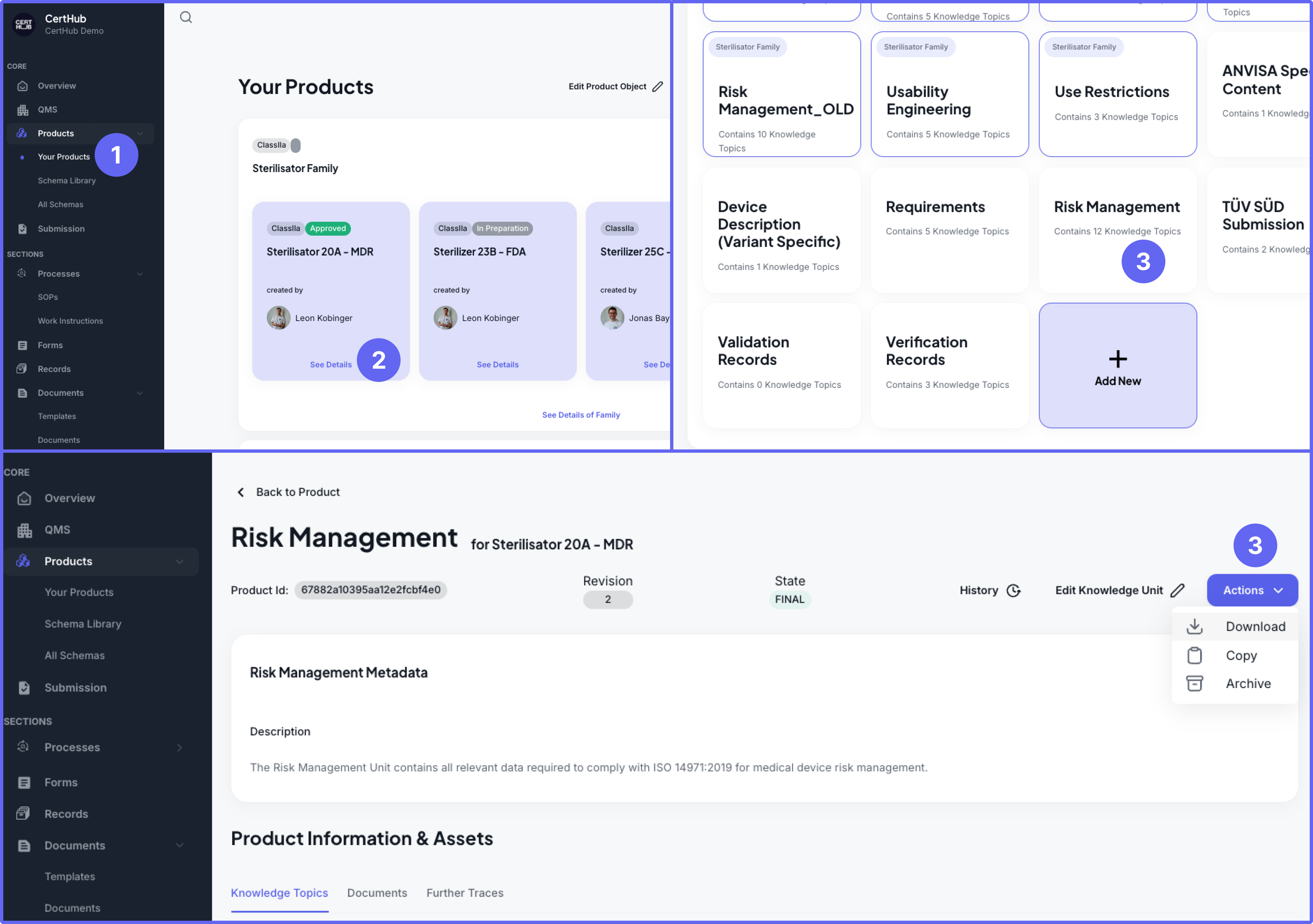 To export a Knowledge Unit, follow these steps:
- Navigate to the Your Products section in the left sidebar of CertHub.
- Select the desired product where you want to import the units (for example, "Sterilisator 20A - MDR").
- Click the "Actions > Downlaod" button.
Currently, CertHub supports exporting one Knowledge Unit at a time. The exported Knowledge Unit will be downloaded as a ZIP archive containing:
- Complete Knowledge Unit configuration
- All Knowledge Topics and their structures (records are not included in the export 📢)
Simply extract the ZIP file to access the exported data. In future releases, CertHub will support exporting multiple Knowledge Units simultaneously, similar to Knowledge Unit Schema exports.
3. Knowledge Topic Records
Knowledge topic records can be exported in CSV format. These exports are valuable for:
- Conducting data analysis in external tools
- Creating comprehensive reports
- Performing bulk updates through subsequent imports
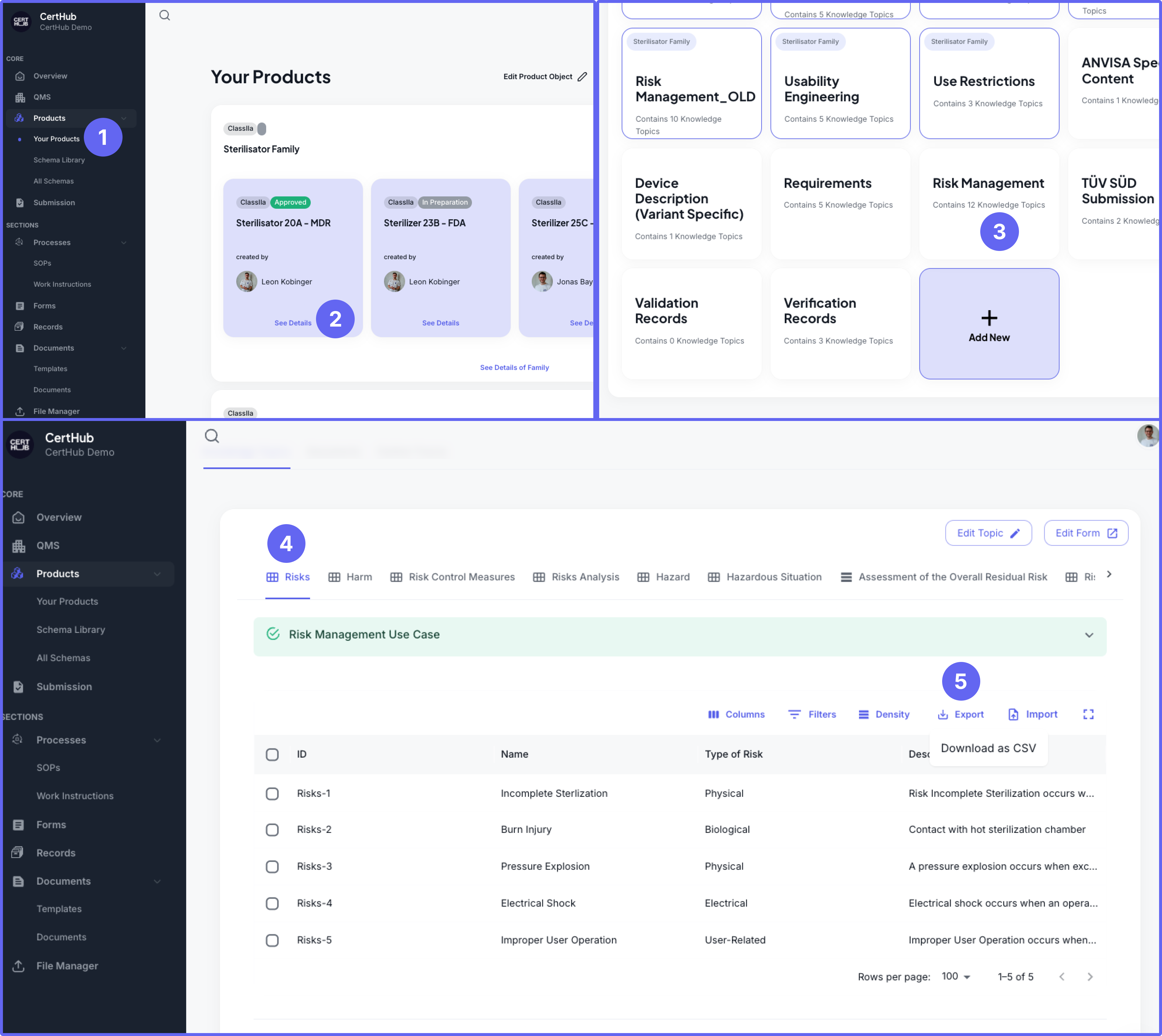
To export Knowledge Topic Records, follow these steps:
- Navigate to the Your Products section in the left sidebar of CertHub.
- Click on your product (for example, "Sterilisator 20A - MDR") to view its details.
- Select the Knowledge Unit where you want to export records (for example, "Risk Management").
- Select the Knowledge Topic tab where you want to export records (for example, "Risks").
- Click the "Export" button in the records view toolbar to download your records as CSV.
The exported CSV file will contain all visible columns in your current view. You can customize the exported data by:
- Using the "Columns" button to select which fields to include
- Applying "Filters" to export specific records
Before exporting, you can use the filters and column settings to customize exactly what data you want to include in your export.
4. Templates & Documents
Templates & Documents can be exported as JSON files, preserving all formatting and revision histories. These exports are crucial for:
- Sharing standardized document formats
- Backing up template libraries
- Maintaining consistent documentation across instances
Exporting Templates
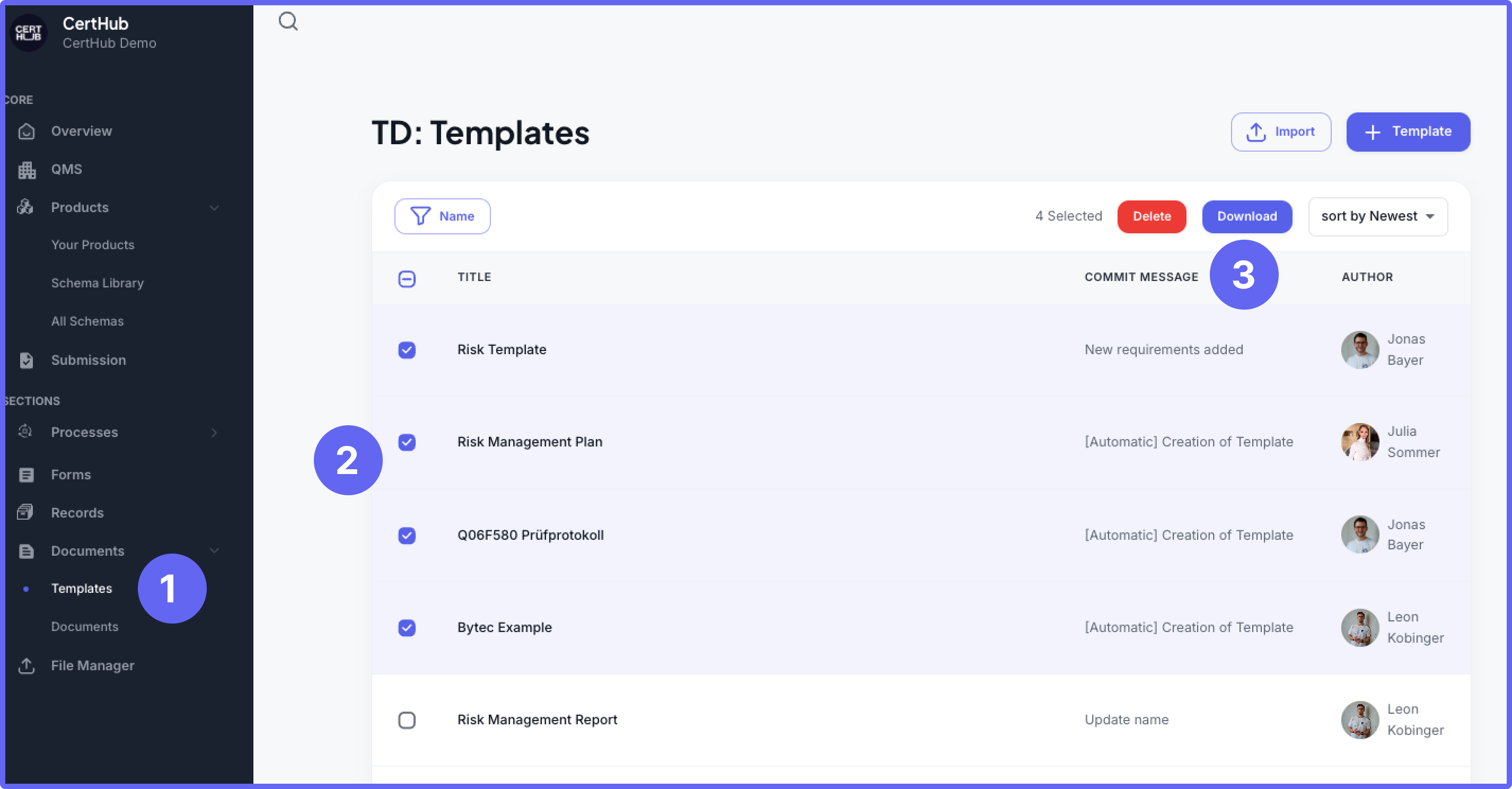
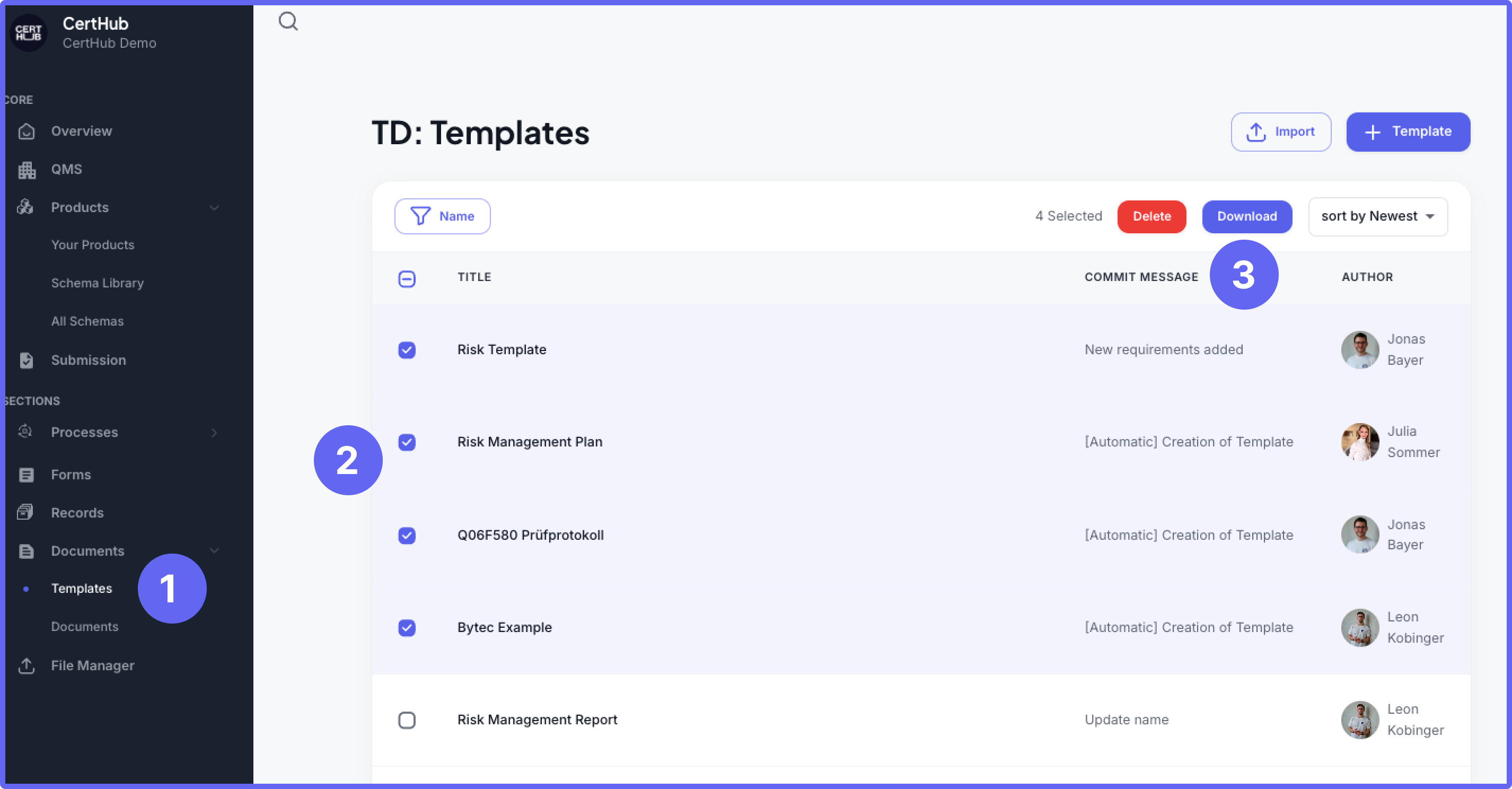
To export Templates, follow these steps:
- Navigate to the Documents section in the left sidebar of CertHub and select "Templates".
- Select the templates you want to export by checking the boxes next to them.
- Click the "Download" button.
Exporting Documents
To export Documents, follow these steps:
- Navigate to the Documents section in the left sidebar of CertHub and select "Documents".
- Select the documents you want to export by checking the boxes next to them.
- Click the "Download" button in the top-right corner of the screen.
Templates & Documents are exported as ZIP archives containing JSON files. The export includes all template & document components, from basic formatting to complex dynamic content. This ensures that documents can be accurately reproduced when imported back into CertHub.
5. Forms
Forms can be exported from the Forms Builder as .form files, containing all form configurations and validation rules. For detailed information about exporting forms, see the Forms Builder Import & Exportdocumentation.
To export a Form:
- Open the Forms Builder
- Click the "Export" option from the Actions menu
- Your form will be downloaded as a
.formfile containing:- Complete form structure and layout
- All validation rules and configurations
- Conditional logic settings
6. Processes
Process definitions can be exported as both .bpmn files and .svg images, preserving the complete process configuration and visual representation. For detailed information about exporting processes, see the Process Editor Import & Export documentation.
To export a Process:
- Open the Process Editor
- Use the Export option from the Actions menu
- You'll receive:
- A
.bpmnfile containing the complete process definition - An
.svgimage file showing the visual representation
- A